I have found that Google Classroom can be very helpful if, like most web platforms, you try it a little bit at a time.
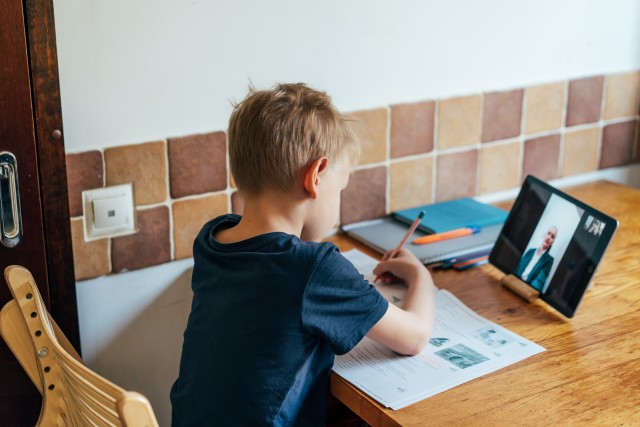
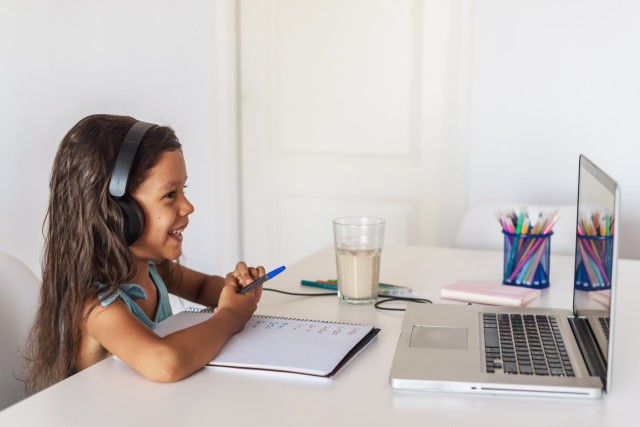
Some students are able to navigate Google Classroom easily, but others have trouble keeping track of all their work online. In particular, young children or students who need support in school may need help from parents to figure out where to find assignments, turn in work, or remember when they have a test.
Keep in mind that some teachers are more savvy at utilizing all the tools in Google Classroom than others, but you can at least look for the following features in Google Classroom to ensure your child is not missing anything important in their online schooling.
1. Check the Stream
The “Stream” is the first thing you see when you are logged into your child’s Google Classroom. It’s the place where teachers can post the latest announcements or updates to the entire class. I have had teachers post anything from their daily agendas, reminders for upcoming tests, or to provide alternative instructions when Zoom, or any online platform your teacher may be using, is not working for class. I recommend having a routine of checking the Stream everyday, such as first thing in the morning or before logging into a synchronous (or live) class with the teacher.
If you have your notifications turned on in Google Classroom, you will receive an email notification every time your teacher posts in the Stream, and if you have the Google Classroom App, you may receive a text notification on your phone. However, these notifications can get a bit annoying when you are enrolled in multiple Google Classrooms. You can turn off your notifications in Settings, which you will find in the Google Classroom menu (looks like 3 parallel lines) in the top left corner of your window.
2. Look for Assignments
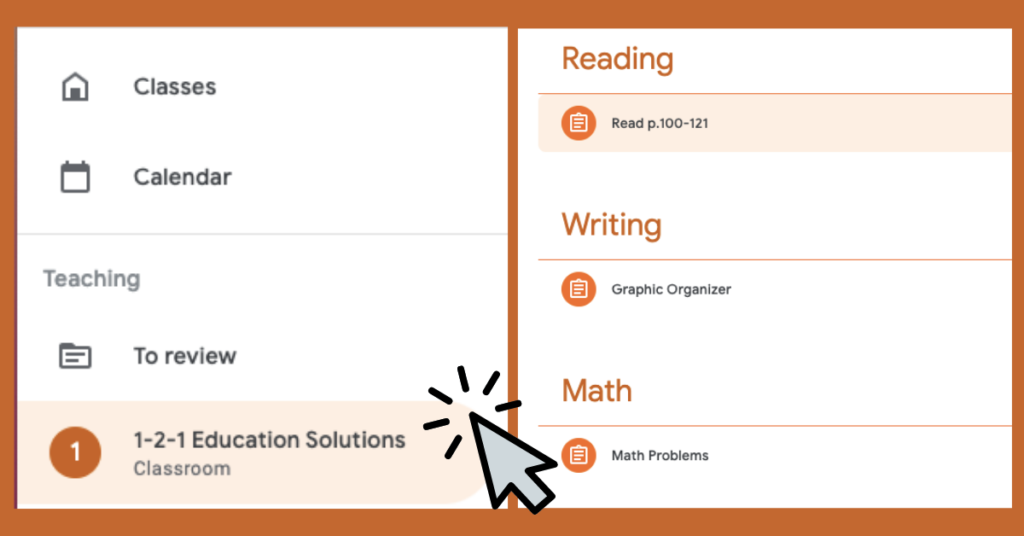
Teachers post assignments in the “Classwork” tab of Google Classroom. You will find the Classwork tab at the top of your Google Classroom page. Assignments that need to be completed have a highlighted clipboard icon next to them.
Although you can check your child’s assignments in the Classwork tab, there are several other ways to see your child’s assignments as well. You can click on the “view your work” tab at the top of the Classwork page or check the “To-Do” list in the Google Classroom menu. I also like to check my child’s Google Calendar for the class too. The advantage of doing this is that you can see your child’s assignments for multiple classes all at once for the week. Students can plan accordingly if they need more time to complete an assignment or see if they have several assignments due on the same day.
3. Review Lesson Content
A lot of teachers post their lesson slides, videos, or other content for students to access after class. Some even post content for upcoming classes. This is a great resource for students if they have questions about an assignment or forgot what they learned earlier in the day. My kids’ teachers have been posting brief 5-10 minute summary videos in their Google Classrooms too. I love these! We watch them every evening together to review the day’s lessons and to make sure she is prepared for the next day’s class. Teachers can include reminders about due dates for assignments, tests, or other projects in their summary videos as well.
4. Set Reminders for Exams
One drawback that I have found with Google Classroom is that students cannot see upcoming quizzes or tests. This is because only assignments can be viewed in Google Calendar or the To-Do list. To avoid students viewing the test early, teachers usually wait to post an exam in Google Classroom until the day and time students are supposed to complete it. Because of this, students cannot see an exam has been scheduled ahead of time. If your child is good at taking notes during class, then this may not be a problem for you. However, there are plenty of kids, especially young ones, who have trouble listening to a teacher and writing notes at the same time. They forget to write down the date of an exam and it springs up on them unexpectedly and unprepared when they are in class.
One way around this is that the student can manually insert a reminder for an exam directly into their Google Calendar for the date and time it is scheduled. That way, they can see their assignments and exams at once over the week. Another idea is to request the teacher to insert the exam date into Google Calendar to help remind the whole class to prepare for an upcoming quiz or test. Even easier, teachers can post an upcoming exam in their Google Classroom Stream to remind students a few days before the test is scheduled. You can communicate these needs or others to your teacher to help your child have a positive and successful online learning experience.
These are just a few ideas of how to use Google Classroom to support your child in school. Comment below if you find these tips useful or you have other ideas to share about making Google Classroom work for your child.
Please subscribe to The In-Service Teacher Blog at the bottom of this page if you would like to receive notifications when new blog posts become available.
Thank you!